
 Setup in under 5 minutes
Start Trading With Weltrade In Under 5 Minutes
Follow our simple step-by-step onboarding guide to create your account, activate your Partner Code, install MT5, and start trading.
Just your name, email and number — then your Weltrade link and free tools unlock instantly.
0 of 5 steps done · ~5 min total
Step-by-step onboarding
Just 5 simple steps
No experience needed. Tick each step off as you go — it takes about 5 minutes.
Enter Your Details
Name, surname, email and cell number — this links your progress and free tools to you.
Create & Verify Your Account
Open Weltrade through our link so your Partner Code applies, then confirm your email.
Open Weltrade with our link and Partner Code CX41062 applies automatically — this unlocks all the free tools.
On the signup form, tap "Partner code (optional)" and paste CX41062 — your account only links once the code is pasted.
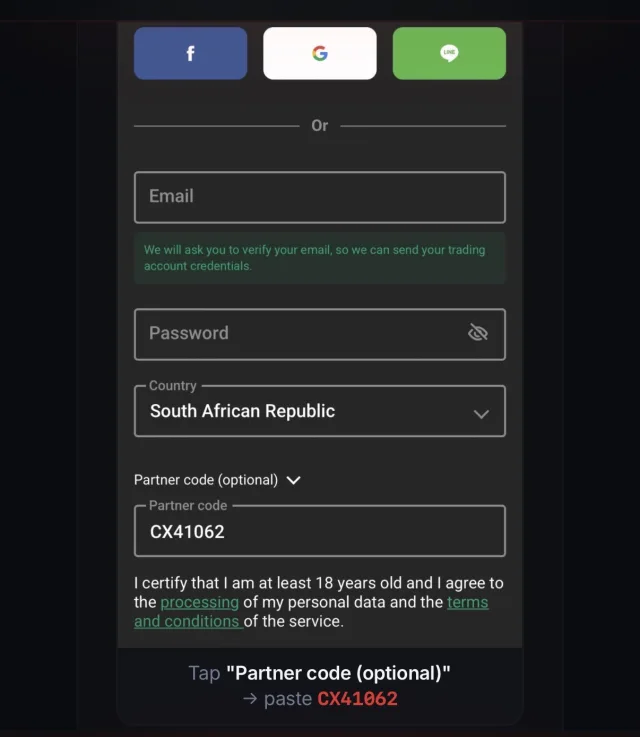
- Then confirm your email
- Open the email from no-reply@weltrade.com and tap Confirm Email Address.
- Can't find it? Check Spam / Promotions — it arrives within 1–2 minutes.
Already registered? Check your ID is linked
Open A Real SyntX Account
Open a new Real account, choose SyntX, accept the terms and create it.
Which market do you want to trade?
- Tap "Open New Real Account" — stay on the Real tab (not Demo).
- Choose SyntX to trade Synthetic Indices.
- Apply the recommended SyntX settings below and tick both agreement boxes.
- Tap "Open Account" to create it.
Avoid a Demo account, a non-USD currency, or skipping the agreement boxes.
Install MT5 & Log In
Get the free MetaTrader 5 app and sign in with your emailed details.
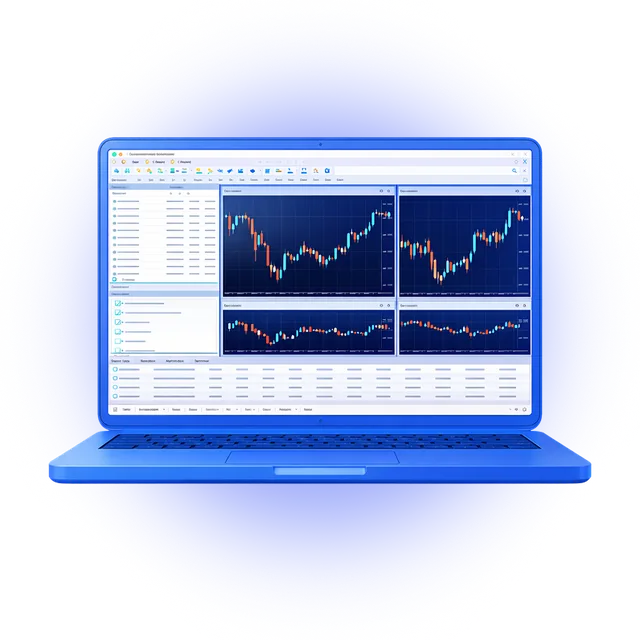
MetaTrader 5 (MT5) is the free app where you'll trade. Install it on your device:
- Open MT5 and tap "Login to an existing account".
- Search for and select the server Weltrade-Live.
- Enter the login and password from your SyntX account email.
Login issues? Double-check the login number, select server Weltrade-Live, and copy-paste the password (no spaces).
Deposit & Join The Community
Add funds when you're ready — start small — and join us for support & signals.
$100–$200
A comfortable starting balance to trade safely while you learn the platform.
- Pay by 💳 Card · 🏦 Bank transfer · 🪙 Crypto · 📱 Local options.
- Most deposits reflect instantly (bank transfers can take a few hours).
- For bank transfers, choose Bank Option 1 — the fastest, most reliable route.